Tempo control · Browser-local

Audio Speed Changer

The audio speed changer lets you set any speed from 50% to 200% while the musical pitch stays fixed. Preview locally, calculate a rate from known BPM values, loop a phrase, and export WAV without uploading your audio.

  • Free to use
  • No sign-up
  • Files stay local

Speed & BPM workspace

Pitch-locked preview · WAV export

Files stay local

Drop audio into the speed changer

Change timing while the musical pitch stays fixed. MP3, WAV, FLAC, M4A, AAC, or OGG up to 80 MB.

Nothing is uploaded

Three local steps

Use the audio speed changer in three steps: choose one file, set a speed or known BPM ratio, then preview the most revealing section before creating a WAV.

  1. 1

    Load audio into the audio speed changer

    Choose one MP3, WAV, FLAC, M4A, AAC, or OGG file up to 80 MB. The audio speed changer asks your browser to decode the file locally. An empty, oversized, unsupported, or undecodable file stops before the workspace opens, and no audio upload is used as a fallback.

  2. 2

    Set speed or calculate it from BPM

    Move the audio speed changer from 50% to 200%, type an exact percentage, or nudge the value by five points. If you already know the original and target BPM, enter both values to calculate the matching rate. The calculator changes speed only; it does not analyze or guess the song BPM.

  3. 3

    Preview, loop, and export a WAV

    Play the audio speed changer result with pitch lock active, seek on the waveform, or mark an A–B loop around a phrase. When the timing feels right, create a 16-bit WAV with the same Signalsmith rate and zero-semitone setting used for preview. Download the new copy while the source file remains unchanged.

Controls with a clear job

The audio speed changer keeps rate, calculated duration, and pitch-lock behavior visible, so you can predict the timing result before export.

Audio speed changer range: 50% to 200%

At 50%, the audio moves at half the original rate and the exported duration is about twice as long. At 200%, it moves at double rate and the duration is about half as long. The audio speed changer shows percentage, multiplier, original duration, and estimated output duration together, so you can predict the timing result before rendering a large WAV.
Pitch lock with Signalsmith Stretch

The audio speed changer fixes the Signalsmith semitone value at zero and changes only its rate parameter. Slower playback therefore does not intentionally lower the musical key, and faster playback does not intentionally raise it. Time stretching can still add audible artifacts at demanding settings, so the live preview remains an essential listening check rather than a decorative player.

BPM changer calculator without detection

When original BPM and target BPM are known, the audio speed changer calculates target divided by original. A move from 120 BPM to 90 BPM produces 75% speed. Values that imply less than 50% or more than 200% fail with a visible range message. The page never labels an estimate as detected BPM because it performs no tempo analysis.

Waveform seeking and A–B practice loops

Use the waveform to reach a chorus, lecture sentence, dance count, or difficult bar without replaying the complete file. The audio speed changer can jump five seconds, return to the beginning, repeat the track, or loop an A–B range of at least 0.25 seconds. Speed changes update on the existing processor while your working position remains continuous.

Practical workflows

These audio speed changer workflows connect a known timing goal to practice, dance, review, and transcription tasks.

1

Slow down music practice while keeping the key

A musician can load a reference track, set the audio speed changer to 75% or 80%, and loop the difficult phrase. The slower timing makes individual notes and attacks easier to hear while the zero-semitone setting keeps the intended key. Increase speed in small steps as the passage becomes comfortable, then return to 100% for a final rehearsal check.

2

Match dance or fitness material to a target BPM

If choreography was prepared at one known BPM and class material needs another, enter both numbers in the BPM calculator. The audio speed changer converts that relationship into a supported speed percentage and updates the expected duration. Preview a section with clear beats before exporting, because perceived groove and counted tempo can depend on how the source was arranged.

3

Review lectures, interviews, and spoken audio

Use faster playback to review familiar speech or slower playback to catch an unfamiliar term. The audio speed changer keeps pitch processing independent from rate, avoiding the intentional chipmunk or low-voice effect produced by simple resampling. Mark an A–B loop around one answer when accuracy matters, and export a timed copy only when another app needs the changed duration.

4

Create transcription and rehearsal copies

Transcribers can slow a dense phrase, return five seconds, and repeat the same range while writing. Singers and instrumentalists can make a rehearsal WAV that preserves the selected key while changing pacing. The audio speed changer creates a separate download, records the change in the filename, and leaves the original compressed or uncompressed file untouched.

Preview checklist

Use the audio speed changer preview to check exposed or detailed passages before export, especially when the rate is far from 100%.

  1. 1

    Begin close to 100% speed

    Start the audio speed changer at 90% for a modest slowdown or 110% for a modest increase. Listen to exposed vocals, cymbals, consonants, and other detailed material before moving farther. Larger time-stretch ratios require more reconstruction and can reveal smearing or transient artifacts that a simple tone will not predict.

  2. 2

    Use BPM only when both numbers are known

    The BPM fields are a calculator, so their quality depends on the values you supply. Confirm the source BPM with a trusted score, project file, metronome check, or separate analysis process. If only one number is available, adjust the audio speed changer by ear instead of presenting an incomplete calculation as a measured tempo.

  3. 3

    Loop the most revealing section

    A full-track preview can hide a problem that appears in one busy chorus or fast sentence. Set A just before that moment and B after it, then compare nearby speed values. The audio speed changer reuses the same processing node for playback and adjustment, which makes a focused loop the fastest way to judge timing and audible artifacts.

  4. 4

    Check duration before creating WAV

    Slower speed creates a longer file and faster speed creates a shorter one. The workspace shows an estimated export duration calculated as original duration divided by speed ratio. Use that number to confirm whether a cue, routine, lesson, or editing slot will fit before asking the audio speed changer to render the full local WAV.

  5. 5

    Keep the source and test the download

    The audio speed changer does not overwrite the selected file. Download the WAV, play it in the destination app, and keep the source for another pass. WAV output can be larger than an MP3 or AAC input, and the current tool has no MP3 export selector, batch queue, cloud history, or automatic storage after the tab closes.

Input, output, and privacy

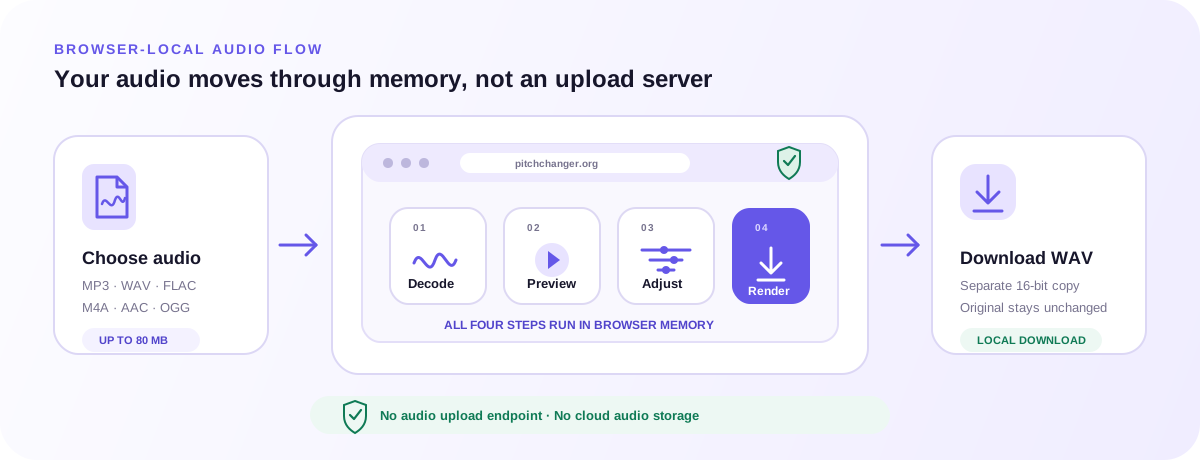
The audio speed changer relies on browser decoding, creates one 16-bit WAV, and keeps selected audio inside this browser session.

Browser-local audio speed changer workflow from file selection through decode, pitch-locked preview, speed adjustment, and WAV download
The audio speed changer decodes, previews, stretches, and renders inside browser memory; only the WAV you request becomes a download.

Supported input formats and browser decoding

The picker accepts MP3, WAV, FLAC, M4A, AAC, and OGG up to 80 MB. Decoding support ultimately comes from the browser and operating system, so a valid extension cannot guarantee every codec variant will open. The audio speed changer reports a decode failure and lets you choose another file instead of sending the problem file to a server.

16-bit WAV output with matched processing

The first release exports one 16-bit WAV. Live preview and offline rendering both use Signalsmith Stretch with rate set from the visible speed and semitones fixed at zero. The audio speed changer does not recreate the original compressed codec, claim bit-for-bit preservation, or offer MP3, M4A, FLAC, AAC, and OGG export options.

Browser-local audio and private working state

Selected audio bytes are decoded, previewed, stretched, and rendered in browser memory. The current audio speed changer has no audio upload endpoint, account, cloud project, payment step, or usage-credit system. Analytics receive only coarse tool actions and never receive the filename, audio content, exact duration, BPM values, waveform, or speed setting.

FAQ

Direct answers about the audio speed changer, browser support, local processing, controls, WAV export, and the limits to check before you begin.

What is an audio speed changer?

An audio speed changer alters how quickly a recording progresses and therefore changes its duration. This audio speed changer uses time stretching so the musical pitch setting remains fixed while rate moves from 50% to 200%. It supports local preview, waveform seeking, A–B looping, optional BPM conversion, and browser-generated WAV output.

Can the audio speed changer slow a song without lowering pitch?

Yes. The page always sends zero semitones to Signalsmith and changes only rate. Set 80% speed, for example, and the output lasts about 1.25 times as long while the selected pitch value stays at the original. Time-stretch processing can introduce artifacts, especially at extreme ratios, so preview the hardest section before export.

Can the audio speed changer make audio faster without raising voices?

Yes. Increasing the audio speed changer above 100% shortens playback and export duration while pitch lock remains active. This differs from simple sample-rate playback, which links speed and pitch. Very fast speech can still become harder to understand and processing can color detailed audio, so use the preview rather than relying only on the percentage.

How does the audio speed changer BPM calculation work?

Enter a known original BPM and target BPM. The audio speed changer divides target by original and converts the ratio to a percentage. Original 120 and target 90 yield 75%. The page accepts the result only when it falls between 50% and 200%. It does not listen to the file, detect beats, or verify that either BPM is correct.

Does the audio speed changer detect BPM automatically?

No. There is no BPM detection, tempo map analysis, downbeat finder, or rhythm classifier. The optional fields are a transparent calculator for values you already know. This boundary avoids showing a confident number for music with rubato, tempo changes, weak transients, spoken audio, or any source where automatic BPM could be misleading.

What audio speed changer range is available?

The audio speed changer supports 50% through 200%. Use the slider, exact number input, or five-point buttons. BPM calculations outside this interval return a visible error and are not silently clamped. The range covers half-speed through double-speed tasks while keeping the first release and its quality expectations clear.

Is the audio speed changer free and does it require sign-up?

The current audio speed changer is free to use and has no sign-up, payment, credit, or quota step. Choose one supported file up to 80 MB, adjust it, and create a WAV in the same tab. The page does not save projects or provide account-based history after the browser session ends.

Does the audio speed changer upload my file?

No audio bytes are sent to a Pitch Changer upload endpoint. File selection, decoding, Signalsmith processing, preview, and WAV rendering happen locally in the browser. The site still uses privacy-masked analytics for coarse product actions; those events exclude filename, audio content, exact duration, BPM inputs, waveform, and processing parameters.

Which file formats can the audio speed changer open and download?

You can select MP3, WAV, FLAC, M4A, AAC, or OGG up to 80 MB when the browser can decode that codec. The audio speed changer downloads a 16-bit WAV only. It does not export MP3 or attempt to preserve the input container, bitrate, tags, or compression settings in the generated file.

Why is the exported WAV longer or shorter?

Duration is determined by rate. At 50%, the audio speed changer needs about twice the original time; at 200%, it needs about half. The workspace displays the estimated duration before export. Small differences at the end can come from audio-frame rounding and the processing engine rather than a hidden speed or pitch setting.

What is the difference between this page and the Pitch Changer?

The audio speed changer has one timing task and keeps pitch locked at zero semitones. The main Pitch Changer exposes semitone, cent, and tempo controls when you intentionally need a new key, fine tuning, or both key and timing changes. Use the focused speed page when pitch should remain at its original setting.

Can I process several files, record audio, or import a URL?

No. The first audio speed changer handles one local file at a time. It has no batch queue, microphone recorder, URL downloader, Google Drive import, Dropbox import, cloud save, or background processing job. These limits keep the file path visible and make it easier to verify that audio remains inside the browser session.

Choose one audio file, start with a modest speed change, loop the section that reveals the result, and create a WAV after the audio speed changer matches your timing goal.

Open the audio speed changer