10 fixed bands from 31 Hz to 16 kHz
The online equalizer has fixed centers at 31, 62, 125, 250, and 500 Hz plus 1, 2, 4, 8, and 16 kHz. Each band adjusts from -12 to +12 dB in 0.5 dB steps. Center frequencies and filter widths are fixed.
Free online · No sign-up · 10-band EQ
Use this free online equalizer to adjust bass, mids, and treble across ten bands. There is no sign-up, payment, or credit step. Hear changes, compare Bypass, then export WAV without uploading your audio.
10-band equalizer workspace
Live spectrum · Presets · WAV export
Files stay local
Shape bass, mids, and treble with a local 10-band EQ. MP3, WAV, FLAC, M4A, AAC, or OGG up to 80 MB.
Three local steps
Load a file, adjust a preset or individual bands, and preview before export.
Choose one MP3, WAV, FLAC, M4A, AAC, or OGG file up to 80 MB. The online equalizer decodes it inside this browser tab and builds only the frequency bands below the decoded working sample rate’s Nyquist limit. Invalid or undecodable input stops before a filter graph is created.
Start with Flat, Bass Boost, Vocal Clarity, or Treble Boost, then adjust any available band from -12 dB to +12 dB. The online equalizer updates the active Web Audio filters without rebuilding the playback graph. Use Bypass to hear the source while every visible gain remains saved.
Play, seek, repeat, or loop a revealing section while the lightweight spectrum responds. Check loud passages for tonal balance, then create a 16-bit WAV. Preview and export share the same frequencies, Q values, gain order, and compressor; WAV export adds a final 0.98 peak ceiling before encoding.
What the tool shows and controls
Adjust the curve while comparing processed and original playback.
The online equalizer has fixed centers at 31, 62, 125, 250, and 500 Hz plus 1, 2, 4, 8, and 16 kHz. Each band adjusts from -12 to +12 dB in 0.5 dB steps. Center frequencies and filter widths are fixed.
Flat returns every band to zero. Bass Boost lifts low bands, Vocal Clarity emphasizes the midrange where speech and lead vocals often carry detail, and Treble Boost raises upper bands. Once you move a band, the online equalizer labels the state Custom. Presets remain starting points, and the live preview decides whether a setting suits this specific recording.
Bypass temporarily makes the live filters and compressor transparent while keeping the sliders and chosen preset values intact. This lets you compare processed and source playback at the same position without rebuilding the file state. The online equalizer export uses the visible gain settings even when Bypass is active, and the export panel states that behavior before you create a WAV.
The live spectrum shows how energy is distributed across frequencies. The online equalizer uses the same compressor for preview and export; audio below its threshold stays unaffected. WAV export also applies a final 0.98 peak ceiling before encoding.
Practical workflows
Match the listening problem to the bands below.
If a recording feels heavy or cloudy, lower 125, 250, or 500 Hz in small steps and compare Bypass. The online equalizer cannot identify “mud” automatically, because the useful range depends on the voice, instrument, room, microphone, and mix. A narrow A–B loop around the problem section helps you judge whether clarity improved without thinning the complete file.
Start with Bass Boost, listen on speakers or headphones you understand, and reduce the preset if kicks, bass notes, or voice plosives dominate. The online equalizer bands at 31 and 62 Hz affect very low energy that small devices may reproduce poorly. Use the spectrum as feedback, then trust repeated listening at a sensible level before exporting the changed WAV.
Vocal Clarity emphasizes selected mid bands and trims some extremes, giving you a quick reference for interviews, lessons, and vocal-heavy music. Move 1, 2, and 4 kHz gradually because too much gain can make consonants or instruments harsh. The online equalizer processes the complete mix; it does not isolate a speaker, remove background music, or edit one stem separately.
This online equalizer writes the active gains into a separate WAV, so the change carries into another app. Keep the original and note your preset or Custom settings; the page does not save presets or projects.
Practical checklist
Make small changes and compare Bypass on a revealing passage.
Try a 2 or 3 dB change in one band. Large boosts consume headroom; use ±12 dB only when needed.
Use lows for weight, mids for presence, and highs for brightness. If the curve becomes unclear, return to Flat and rebuild.
Loop a loud chorus, close vocal, or cymbal hit to check for harshness or excessive bass as gains change.
Disabled upper bands reflect the decoded sample-rate limit. Resampling elsewhere cannot restore missing high-frequency detail.
Test on your intended headphones or speakers. Player EQ, downstream normalization, and room acoustics may change what you hear; keep the source.
Input, output, and privacy
The online equalizer relies on browser decoding, disables bands at the working Nyquist limit, exports WAV, and keeps audio local.
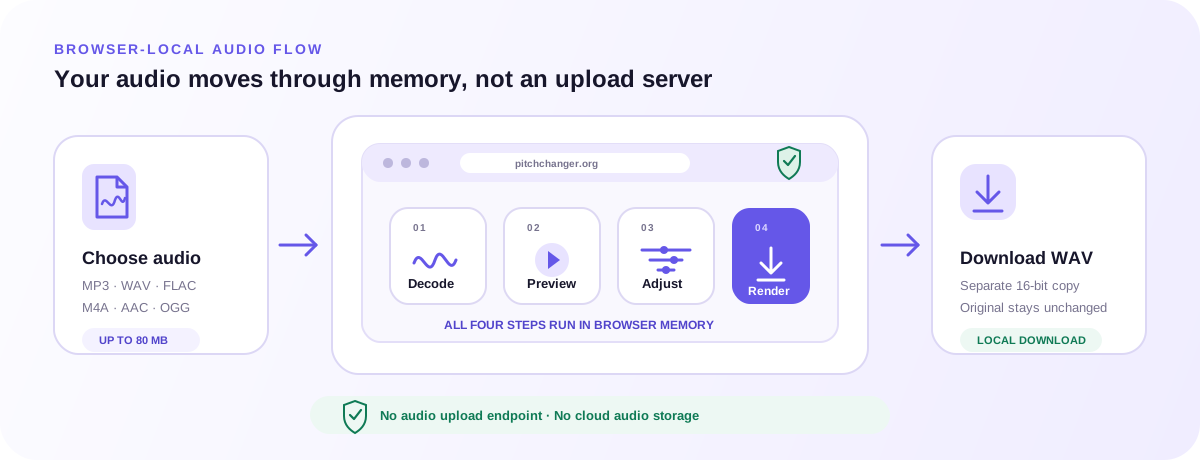
The picker accepts MP3, WAV, FLAC, M4A, AAC, and OGG up to 80 MB when the browser can decode the codec. Available EQ bands depend on sample rate: any center at or above Nyquist is disabled. The online equalizer reports these local capability limits and never sends a difficult file to a server-side decoder or converter.
Offline rendering uses the same fixed frequencies, gains, Q value, filter order, and compressor configuration as preview, then applies a final 0.98 peak ceiling. Bypass is a comparison control, so export applies the visible curve. The online equalizer outputs WAV only and does not recreate the source codec, metadata, bitrate, loudness target, MP3, M4A, FLAC, AAC, or OGG container.
Audio bytes, decoded PCM, spectrum values, band gains, presets, and rendered output remain inside the browser session. The online equalizer has no audio upload endpoint, account, cloud storage, payment, or saved preset sync. Analytics receive coarse tool actions while excluding filename, exact duration, waveform, gain values, preset choice, spectrum, audio, and error stack.
Related browser tools
Pitch, timing, direction, tone, automatic analysis, and tap-based tempo are different audio tasks. Open the tool whose controls match the result you need. Any file you choose stays inside that tool’s browser-local workflow.
Change the musical key by semitones or cents and adjust tempo independently when frequency balance is not the task.
Open Pitch Changer →Change playback and export duration from 50% to 200% while Signalsmith keeps the original pitch setting fixed.
Open Audio Speed Changer →Reverse every audio sample or only a marked A–B range, compare the source, and export the full local WAV.
Open Audio Reverser →FAQ
Direct answers about the online equalizer, browser support, local processing, controls, WAV export, and the limits to check before you begin.
An online equalizer adjusts frequency levels. This tool applies ten bands to the complete mix, without isolating voices or instruments.
Load a file, try a preset, adjust one band at a time, and compare with Bypass. Check the whole track before creating WAV.
31, 62, 125, 250, 500 Hz and 1, 2, 4, 8, 16 kHz. Bands at or above half the decoded sample rate are disabled.
Flat sets zero gain. The other presets emphasize lows, selected mids, or highs. Manual changes switch the label to Custom; presets are starting points.
Bypass lets you hear the original audio while keeping your slider settings. Export still applies the visible EQ curve, even with Bypass on.
It can emphasize those frequencies across the mix. Results depend on the recording; it cannot isolate vocals, remove noise, or repair clipping.
Preview and export share a compressor. Export also reduces peaks above 0.98 before 16-bit encoding. This safety stage does not guarantee mastering compliance.
Its center frequency reaches or exceeds Nyquist, half the decoded sample rate. Lower bands remain usable; the file has still decoded.
Yes. No sign-up, payment, or audio upload. Analytics exclude filenames, audio, duration, waveform, EQ settings, spectrum, and output bytes.
Open MP3, WAV, FLAC, M4A, AAC, or OGG up to 80 MB with browser codec support. Export is 16-bit WAV without source tags or artwork.
No. It shapes tone with ten bands and a safety stage. It does not target streaming loudness, restore distortion, or boost system volume.
No. Work with one local file at a time. Closing or reloading clears the settings and download; cloud presets, recording, and imports are unavailable.
Start from Flat or a modest preset. Compare Bypass before saving your adjusted WAV.
Open the online equalizer