Whole-track or selected reversal

Audio Reverser

Use this audio reverser to reverse a full audio file or a selected section within it. Compare Original and Reversed at the same position, then export the full WAV locally without uploading your file.

  • Free to use
  • No sign-up
  • Files stay local

Reverse audio workspace

Whole track or selected range · WAV export

Files stay local

Drop audio into the reverser

Hear the full recording backwards or reverse one selected range. MP3, WAV, FLAC, M4A, AAC, or OGG up to 80 MB.

Nothing is uploaded

Three local steps

Use the audio reverser in three steps: choose one file, decide between the whole track and a marked A–B range, then compare the result before creating the full WAV.

  1. 1

    Load a file into the audio reverser

    Choose one MP3, WAV, FLAC, M4A, AAC, or OGG file up to 80 MB. The audio reverser decodes it in browser memory and keeps an immutable copy of the original PCM. Unsupported, empty, oversized, or undecodable input fails visibly before any reverse operation begins.

  2. 2

    Reverse the whole track or mark A–B

    Whole-track reversal is ready by default. To reverse only one passage, seek to the start, set A, move at least 0.25 seconds forward, set B, and choose Selected A–B. The audio reverser flips samples inside that boundary while the samples before A and after B remain in their original order.

  3. 3

    Compare the result and create WAV

    Switch between Original and Reversed without losing the playhead, selection, or source PCM. Use the loop to inspect a transition, then export a complete 16-bit WAV. Even in selected-range mode, the audio reverser downloads the full timeline with only the marked passage running backwards.

Controls with a clear job

The audio reverser keeps scope, sample boundaries, and the immutable original visible, so preview comparison never changes the requested export.

Whole-track reversal by default

As soon as a file is decoded, the audio reverser derives a full backward preview from a fresh copy of each channel. The final sample becomes the first, the first becomes the final sample, and the frame count stays unchanged. Sample rate, duration, and channel alignment remain stable, giving you a predictable result without a separate processing screen or automatic download.

Sample-accurate A–B range reversal

A and B are converted from seconds to matching sample indexes for every channel. The audio reverser reverses only that half-open frame range and copies all samples outside it unchanged. This is useful for a word, drum fill, transition, or sound-design fragment when reversing the complete recording would remove the surrounding context you still need.

Original and Reversed listening comparison

The comparison buttons act as a preview bypass. Switching to Original uses the immutable decoded buffer; switching back uses the current derived reversal. The audio reverser preserves the current time and active A–B state during that change. Export always creates the reversed result described by the scope control, so a temporary listening bypass does not silently replace the requested output.

Fresh derived buffers prevent cumulative damage

Changing scope or selection never reverses the already reversed preview. The audio reverser reads the same source PCM and builds a new buffer for every configuration. That boundary makes repeated edits deterministic: choosing whole track after an A–B experiment produces one whole-track reversal, and returning to Original still reveals the exact decoded source held for this tab.

Practical workflows

These audio reverser workflows focus on sound design, close listening, and transitions that benefit from a controlled playback direction.

1

Hear hidden shapes in speech and vocals

Reverse a spoken phrase, sung line, or breath to hear its envelope from a different direction. A whole-track audio reverser is useful for a broad creative scan; selected A–B reversal is more practical when one word or syllable matters. Keep the original comparison available because reversed consonants and room tails can sound dramatically different even though total duration is unchanged.

2

Build reverse cymbal and transition ideas

Mark the attack and decay of a cymbal, impact, piano chord, or texture, then reverse only that range. The audio reverser keeps the rest of the file in place, letting the selected sound rise toward its former attack while surrounding timing remains available for reference. Export the complete WAV and trim or arrange it later in your editor if needed.

3

Study melodies, rhythms, and production details

Playing music backwards can expose repetition, tails, edits, and rhythmic density that are easy to overlook forward. Use the waveform and five-second transport controls to locate a region, then loop it while switching Original and Reversed. The audio reverser does not identify notes, transcribe lyrics, detect hidden messages, or explain what you hear; it gives you a controlled playback transformation.

4

Create a reversible sound-design copy

Sound designers can audition the complete backward file, narrow the idea to an A–B range, and download a separate WAV. The audio reverser never writes into the chosen source and does not add cloud project state. Keep the original file beside the generated copy so later editing decisions can be repeated from known input rather than from a chain of previously transformed exports.

Preview checklist

The audio reverser keeps duration stable, while its waveform, loop, and Original/Reversed switch help you inspect abrupt A–B joins.

  1. 1

    Place A and B away from important transients

    A selected reversal creates a new direction at both range boundaries. If A or B cuts through a loud transient, sustained note, or non-zero waveform point, the join may click or sound abrupt. Move the markers into quieter moments when possible, loop the boundary, and compare nearby positions before asking the audio reverser to render the complete WAV.

  2. 2

    Use Whole track to verify the source first

    Start with the default whole-track audio reverser to confirm that the file decoded, the waveform duration is sensible, and backward playback is audible. Then set A–B if the task needs one region. This sequence separates file compatibility from selection decisions and makes an unexpected result easier to diagnose without changing several variables at once.

  3. 3

    Compare from the same playhead

    Original and Reversed preserve the working position, so listen to the same timestamp on both buffers. With a selected range, place the playhead just before A and let playback cross the first boundary. The audio reverser comparison becomes more informative when context, position, and volume are held steady instead of restarting at unrelated moments.

  4. 4

    Remember that reversed audio keeps its duration

    Sample order changes, but frame count and sample rate do not. A six-second file remains about six seconds after whole or selected reversal. The audio reverser shows the same original and export duration so you can spot any assumption that reversal will stretch, compress, transpose, or automatically trim the selected range.

  5. 5

    Preview the downloaded WAV in its destination

    The audio reverser exports a 16-bit WAV and does not recreate the source codec or metadata. Play the download in the editor, sampler, presentation, or rehearsal app where it will be used. Keep the source file because the current browser session has no cloud history, account recovery, or stored recipe after the tab closes.

Input, output, and privacy

The audio reverser depends on browser decoding, always exports a full WAV, and keeps source and derived audio inside this browser session.

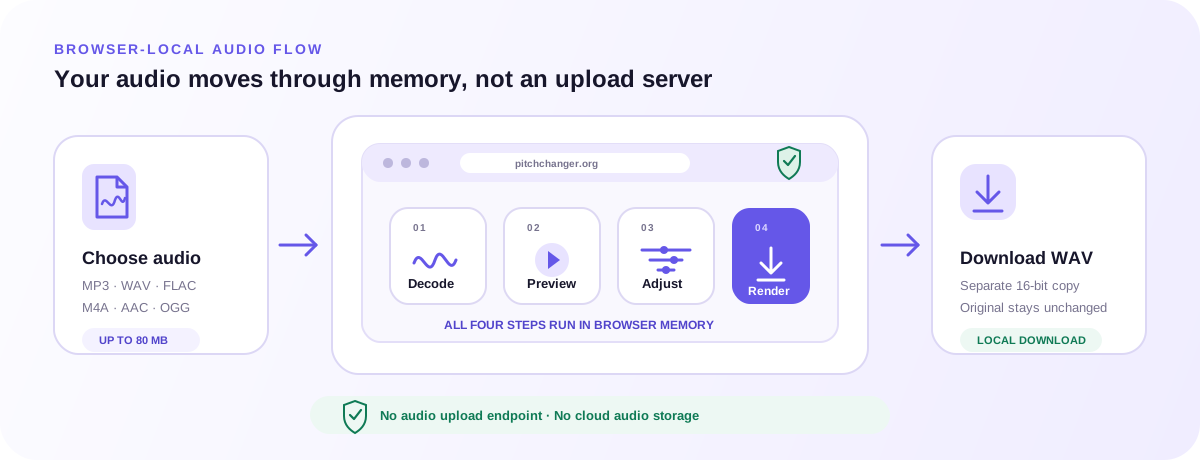
Browser-local audio reverser workflow from selected file through decode, whole or A–B sample reversal, comparison, and WAV download
The audio reverser keeps source PCM and every derived buffer inside browser memory, then creates only the full WAV you choose to download.

Supported input formats and browser decoding

The picker accepts MP3, WAV, FLAC, M4A, AAC, and OGG up to 80 MB, but the browser and operating system provide the actual decoder. Some codec variants may fail even with a familiar extension. The audio reverser reports the decode problem locally and asks for another file; it does not upload the source to seek a server-side decoder.

Full-duration 16-bit WAV output

Whole-track and selected-range modes both export the complete decoded duration. Selected mode changes only the samples between A and B, while whole mode reverses every frame. The audio reverser outputs 16-bit WAV and provides no MP3, M4A, FLAC, AAC, OGG, selection-only, batch, or automatic archive option in this release.

Private browser-local reversal

Decoded PCM, the waveform, the immutable source, derived reversed buffers, and exported bytes stay in browser memory. The current audio reverser has no audio upload route, object storage, login, payment, or cloud task. Analytics receive a coarse tool action and never receive filename, audio content, exact duration, waveform, sample selection, or processing output.

FAQ

Direct answers about the audio reverser, browser support, local processing, controls, WAV export, and the limits to check before you begin.

What is an audio reverser?

An audio reverser plays samples in the opposite order. This online audio reverser can reverse every frame in a file or only a marked A–B range. It keeps total frame count, sample rate, channel alignment, and duration stable, provides Original/Reversed preview, and creates a separate browser-generated WAV without overwriting the source.

How do I use the audio reverser to play a file backwards?

Choose a supported local file and wait for its waveform. Whole track is selected automatically, so you can play the reversed preview immediately. For one passage, mark A and B and select Selected A–B. Listen across the boundaries, compare Original and Reversed, then ask the audio reverser to create the full WAV.

Can the audio reverser reverse only part of a song?

Yes. Set A at the start and B at least 0.25 seconds later, then choose Selected A–B. The audio reverser maps those times to the same sample boundaries on every channel, reverses that range, and keeps the samples outside it in place. The exported file still contains the full original timeline.

Can the Audio Reverser export only the selected range?

No. The first audio reverser intentionally exports a complete WAV in both modes. Selected-range mode modifies the marked passage inside that full file; it does not crop or download A–B alone. Use an audio editor after export if you need a separate clip, fade, crossfade, or arrangement around the reversed material.

Does the audio reverser change pitch, speed, or duration?

No intentional pitch shift or time stretch is applied. The audio reverser changes sample order while preserving frame count and sample rate, so duration remains the same. Perceived melody, attacks, words, and rhythm can sound radically different because they run backward, but there is no Signalsmith pitch or speed processor in this page.

Why can a selected reversal click at A or B?

A boundary can join sample values that were not adjacent in the original direction. If the marker cuts through a loud waveform or transient, that discontinuity may sound like a click. Move A or B into a quieter area and loop the transition. The audio reverser does not add automatic fades because that would change more samples than the selected reversal contract describes.

What does Original/Reversed do?

It is a listening bypass. Original plays the immutable decoded PCM and Reversed plays the currently derived buffer while position, scope, and selection remain available. The audio reverser export still follows Whole track or Selected A–B. Switching to Original for comparison does not turn the download into an unchanged source copy.

Is the audio reverser free and private?

The current audio reverser is free, requires no sign-up, and processes one file locally in the browser. No selected audio bytes are sent to a Pitch Changer upload endpoint. Privacy-masked analytics record coarse actions such as file selected or export completed while excluding filenames, audio, exact timing, waveform, and range data.

Which files can the audio reverser open?

The picker accepts MP3, WAV, FLAC, M4A, AAC, and OGG up to 80 MB when your browser can decode the codec. Container names alone do not guarantee support across every browser and operating system. If decoding fails, the audio reverser keeps the failure local and asks you to choose a compatible file.

Which format does the audio reverser export?

It exports a 16-bit WAV. The audio reverser does not create MP3, M4A, FLAC, AAC, or OGG and does not copy source tags or compression settings into the new file. WAV provides one explicit local output path; it may be considerably larger than a compressed input of the same duration.

Does the audio reverser modify the original file?

No. The browser reads the source and holds an immutable decoded buffer. Every whole-track or selected reversal is built from fresh channel copies, and the generated WAV is a separate download. Closing or reloading the tab clears the working state, while the file on your device remains exactly where it was.

Can I batch reverse files, record audio, or import a URL?

No. This release processes one selected file at a time and has no batch queue, microphone recording, URL download, Google Drive import, Dropbox import, cloud storage, or background job. The limited audio reverser workflow keeps input, transformation, comparison, and output visible within one browser tab.

Choose an audio file, preview the whole-track reversal, mark A–B only when the task needs a focused change, and export after the audio reverser boundaries sound right.

Open the audio reverser