Estimated BPM with tempo alternatives
BPM Finder reports one main estimate and shows valid half-time or double-time candidates. That makes common 70 versus 140 BPM ambiguity visible instead of presenting one number as certain.
Free online · No sign-up · BPM, key & Camelot
Use this free online BPM Finder to estimate a song’s BPM, musical key, Major or Minor mode, and Camelot label. No sign-up or payment step is required. Results can be ambiguous, and your file stays in this browser.
BPM & key analysis
Estimated tempo · musical key · Camelot
Files stay local
Estimate BPM, song key, Major or Minor, and Camelot locally. MP3, WAV, FLAC, M4A, AAC, or OGG up to 80 MB and 15 minutes.
Three local steps
BPM Finder analyzes one recording at a time. A dedicated local worker examines bounded windows, then reports BPM and key as separate estimated results.
Load a browser-decodable MP3, WAV, FLAC, M4A, AAC, or OGG file up to 80 MB and 15 minutes. BPM Finder checks duration and memory limits locally before full analysis starts.
BPM Finder uses the complete recording for short files. Longer files use up to three deterministic windows totaling 180 seconds, downmixed to mono at 22,050 Hz and transferred to a dedicated browser worker.
Review BPM Finder's main estimate, possible half-time or double-time interpretations, song key, Major or Minor mode, and Camelot label. Each result can succeed or report insufficient evidence independently.
What the tool shows and controls
BPM Finder keeps tempo alternatives, song-key evidence, partial results, cancellation, and privacy visible throughout one analysis task.
BPM Finder reports one main estimate and shows valid half-time or double-time candidates. That makes common 70 versus 140 BPM ambiguity visible instead of presenting one number as certain.
BPM Finder compares chroma evidence with major and minor profiles, then displays the estimated pitch name, Major or Minor mode, and matching Camelot code when the song-key result clears the ambiguity thresholds.
A stable beat can exist without reliable harmony, and a sustained tonal passage can exist without a stable pulse. BPM Finder keeps BPM and key in separate result states, so one useful estimate remains visible when the other lacks evidence.
BPM Finder runs heavy feature collection and estimation away from React rendering. Changing files, cancelling, or leaving the page invalidates the old task and terminates its worker, preventing stale results from replacing the current file.
BPM Finder's versioned 12-clip real-audio set currently finds a valid BPM interpretation for 11 clips and an exact pitch-class and mode match for 9. All eight declared missing-evidence checks return unavailable. These regression results document the current build; they do not guarantee every recording.
The BPM finder examines rhythmic and chroma features from the selected audio. It does not identify the song, search an online music database, call an AI service, or substitute stored metadata for evidence in the recording.
Practical workflows
Use the estimates as starting information for DJ preparation, practice, transposition, or a manual tap check.
Use the tempo estimate and Camelot label from BPM Finder as starting information for tempo and harmonic compatibility. Confirm the result by ear in your DJ software because live recordings, key changes, and half-time grooves can support another interpretation.
Use BPM Finder to estimate the tempo, then open Audio Speed Changer to calculate a slower target BPM while holding musical pitch fixed. The direct link keeps detection and transformation as two clear tasks.
Use the key estimated by BPM Finder as a reference before opening Pitch Changer. Listen for modulations, borrowed chords, tuning differences, or ambiguous modes that a whole-track key summary cannot fully describe.
When the file has a weak or changing pulse, open Tap Tempo and tap along with the section you hear. Manual tapping can focus on a chosen passage without pretending the automatic analysis found evidence it did not have.
Practical checklist
BPM Finder works best with a clear source and careful listening when you interpret tempo hierarchy, harmony, and explicit unavailable states.
Check the result against audible beats and tonal centers. Syncopation, swing, live drift, sparse intros, key changes, alternate tuning, and layered harmony can all affect an automatic summary.
If the main BPM feels too slow or too fast, compare the shown candidate values with the rhythm you count. Genre conventions often label the same pulse hierarchy differently.
Heavy clipping, crowd noise, speech over music, extreme filtering, and very low level reduce useful evidence. A clear full mix usually gives the BPM finder more rhythmic and harmonic information.
No reliable estimate means the selected windows did not clear the fixed evidence threshold. The page avoids filling that gap with 0 BPM, C Major, or another default guess.
BPM Finder returns one whole-file summary from the selected analysis windows. A track that accelerates, changes key, or moves between free and metered sections may need section-by-section listening in an editor before you use one number or key for the entire arrangement.
Input, output, and privacy
BPM Finder analyzes one file within explicit duration and memory budgets. Results remain estimates, and unsupported editing, export, history, and batch features stay visible as limits.
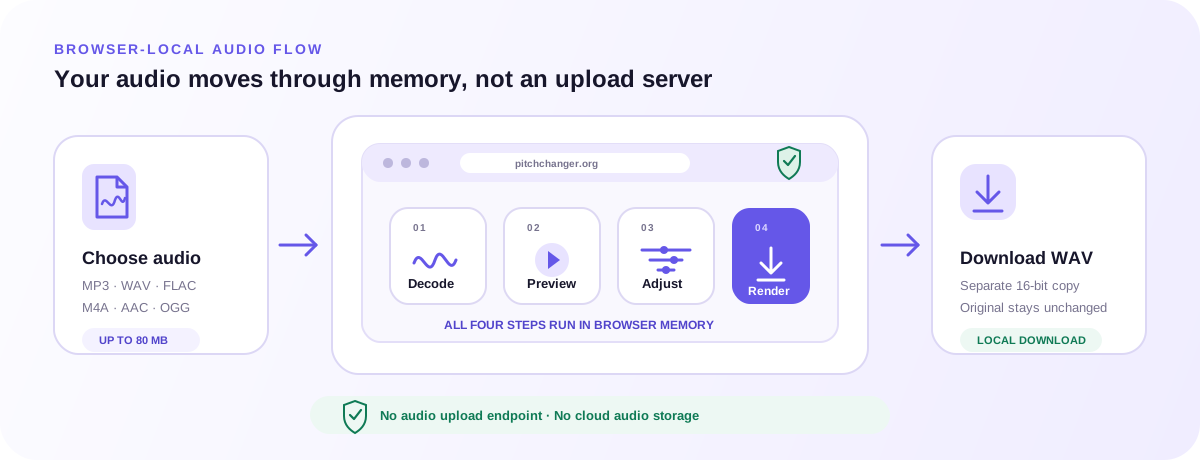
BPM Finder accepts one supported file up to 80 MB and 15 minutes. Decoded PCM plus the reduced analysis array and scratch space must fit the 256 MiB browser budget before a worker starts.
The result is a whole-file estimate from selected windows, not a beat grid, downbeat map, chord transcript, key-change timeline, tag editor, or guaranteed music-theory decision.
Audio bytes, PCM, windows, BPM, key, and Camelot values stay in the browser. Analytics receive coarse states without filenames, exact duration, detected values, waveforms, or audio content.
Related browser tools
Pitch, timing, direction, tone, automatic analysis, and tap-based tempo are different audio tasks. Open the tool whose controls match the result you need. Any file you choose stays inside that tool’s browser-local workflow.
Tap along with a beat when you want a manual BPM result for a specific passage.
Open Tap Tempo →Enter an original and target BPM to change timing while keeping musical pitch fixed.
Open Audio Speed Changer →Transpose a recording after checking its estimated musical key and rehearsal goal.
Open Pitch Changer →Turn a timed phrase into a longer repeated WAV after you already know the tempo you want to practice.
Open Audio Looper →FAQ
Direct answers about automatic BPM and song-key estimates, Camelot labels, supported files, browser-local analysis, ambiguity, and unavailable results.
BPM Finder is a browser-local tool that estimates a recording’s beats per minute. This page also acts as a song key finder by estimating the musical key, Major or Minor mode, and Camelot label from the same selected file.
Accuracy depends on the recording. Stable drums and clear harmony are easier than free tempo, live drift, syncopation, sparse arrangements, speech, or key changes. The page labels results as estimated and shows half-time or double-time alternatives when available.
The same rhythm can often be counted at two pulse levels. A groove heard at 70 BPM may also be labeled 140 BPM. Showing candidates makes that ambiguity visible so you can choose the interpretation that matches the musical context.
Camelot notation maps major and minor keys to numbered A and B labels commonly used for harmonic mixing. It is shown beside the estimated key and mode; it does not guarantee that every section of a song stays in that key.
Yes. Rhythmic and harmonic evidence are evaluated separately. Pure percussion can provide a stable BPM with no useful key, while a sustained chord can provide tonal evidence without a repeating pulse.
The local windows may be silent, too quiet, rhythmically unstable, freely timed, atonal, or harmonically ambiguous. The tool returns an explicit unavailable state instead of a default number or key.
No. Metadata checks, decoding, window preparation, and the analysis worker run in this browser tab. The custom analytics events exclude filenames, audio, precise timing, detected BPM, song key, and Camelot results.
No. V4 analyzes one file and displays estimates in the page. It does not write metadata, export CSV, save history, process a folder, build a beat grid, or add a click track.
Choose MP3, WAV, FLAC, M4A, AAC, or OGG up to 80 MB and 15 minutes when the browser can decode that codec. Unsupported, empty, over-limit, or undecodable files stop locally before analysis begins.
No. Short files use the full recording and long files use three fixed windows for one whole-file estimate. To measure the pulse of a specific passage, play that passage elsewhere and use Tap Tempo manually.
This free online BPM Finder has no sign-up, payment, credit, or quota step. Choose one supported file and review the estimated BPM, song key, mode, and Camelot result in the same tab. The page does not upload audio, save analysis history, or sync results to an account.
Choose a clear recording, review both tempo interpretations and key evidence, and use Tap Tempo or the focused editing tools for the next task.
Analyze Audio with BPM Finder